Skip to menu

MenuOnePOS Owner Hub

Help Center

This page is available in two languages: English (EN) and Korean (KR). English categories begin with “EN,” and Korean categories begin with “KR.”

이 페이지는 영어(EN)와 한국어(KR) 두 가지 언어로 제공됩니다. 영어 카테고리는 EN으로, 한국어 카테고리는 KR로 시작합니다.


Views 69 Votes 0 Comment 0
?

Shortcut

PrevPrev Article

NextNext Article

Larger Font Smaller Font Up Down Go comment Print
?

Shortcut

PrevPrev Article

NextNext Article

Larger Font Smaller Font Up Down Go comment Print

In the MenuOnePos.com Owner App, IP printer setup works without a computer. As long as the Ethernet printer and the tablet or mobile phone are connected to the same network, the printer can be used immediately.


To set up the Ethernet POS Printer, you must first download and install the Owner App from MenuOnePos.com.

📌 Supported Printer Types

The system supports the following types of printers:

  1. Network (IP) Thermal Printer
  2. Bluetooth Printer
  3. Sunmi V2
  4. FP‑80WC 80mm Printer

This section explains how to set up

The Network (IP) Thermal Printer.


✅ Most Important Requirement

The Network (IP) Thermal Printer and the Android device running the Owner App (or Merchant App) must be connected to the same network — meaning the same Wi‑Fi and the same router.

If they are on different networks, the app will not be able to detect or communicate with the printer.


✅ Setup Instructions

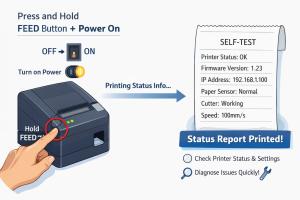
1) Print the Network Information from the Printer

Use the printer’s built‑in function to print its Network Information Report.
This report will show:

  • IP Address
  • Subnet Mask
  • Gateway
  • MAC Address

This information helps identify which network the printer is connected to.


2) Log in to the Router to Verify the Printer Connection

Using the IP Address printed from the printer, log in to your router’s admin page and check:

  • Whether the printer is connected to this router
  • Which SSID (Wi‑Fi name) it is connected to
  • The assigned IP address

You can find this in the Connected Devices or DHCP Client List section.


3) Connect the Android Device to the Same Network

Make sure the Android device running the Owner App or Merchant App is connected to the same router and same Wi‑Fi network (SSID) as the printer.

Example:

  • Printer: 192.168.0.xxx

  • Android device: 192.168.0.xxx
    → Same network (works)

  • Printer: 192.168.0.xxx

  • Android device: 192.168.1.xxx
    → Different network (will not work)


📌 Summary

  • The printer and the Android device must be on the same router, same Wi‑Fi (SSID), and same IP range.
  • Print the printer’s network information to identify its IP settings.
  • Check the router’s admin page to confirm the printer’s connection.
  • Connect the Android device to the same network to enable communication.


Owner Guide Center

MenuOnePOS Owner Hub

  1. Printing Setup Guide: Checking POS Printer Status for MenuOnePOS

    To enable printing from various MenuOnePOS applications, the POS printer information must be correctly configured. By knowing the printer’s details, you can set up printing for different functions such as order management, receipt printing, ...
    CategoryPrinter-EN Views46
    Read More
  2. No Image

    How to Check the Wi‑Fi Network Name (SSID) on an Android Tablet

    📡 How to Check the Wi‑Fi Network Name (SSID) on an Android Mobile and Tablet Checking the Wi‑Fi network name on an Android tablet is simple, though menu labels may vary slightly depending on the device manufacturer or Android version. Follo...
    CategoryPrinter-EN Views60
    Read More
  3. No Image

    How to Connect Your Existing Ethernet POS Printer to Our App

    How to Connect Your Existing Ethernet POS Printer to Our App If you already have an Ethernet POS printer installed in your restaurant, you can easily connect it to our app by following the steps below. Even if you don’t know your router’s lo...
    CategoryPrinter-EN Views85
    Read More
  4. No Image

    Network (IP) Thermal Printer Setup for Owner App

    In the MenuOnePos.com Owner App, IP printer setup works without a computer. As long as the Ethernet printer and the tablet or mobile phone are connected to the same network, the printer can be used immediately. To set up the Ethernet POS Pri...
    CategoryPrinter-EN Views69
    Read More
  5. No Image

    Bluetooth Printer Setup Guide for Owner App

    Are you already using a POS Bluetooth printer? If you already have a Bluetooth printer in use, you can connect it to our system without purchasing a new one. This allows you to continue using your existing printer, making it a more economica...
    CategoryPrinter-EN Views77
    Read More
Board Pagination Prev 1 Next
/ 1
SCROLL TOP