Skip to menu

MenuOnePOS Owner Hub

Help Center

This page is available in two languages: English (EN) and Korean (KR). English categories begin with “EN,” and Korean categories begin with “KR.”

이 페이지는 영어(EN)와 한국어(KR) 두 가지 언어로 제공됩니다. 영어 카테고리는 EN으로, 한국어 카테고리는 KR로 시작합니다.


Printer-EN
2026.04.16 22:27

Bluetooth Printer Setup Guide for Owner App

Views 77 Votes 0 Comment 0
?

Shortcut

PrevPrev Article

NextNext Article

Larger Font Smaller Font Up Down Go comment Print
?

Shortcut

PrevPrev Article

NextNext Article

Larger Font Smaller Font Up Down Go comment Print

Are you already using a POS Bluetooth printer?

If you already have a Bluetooth printer in use, you can connect it to our system without purchasing a new one. This allows you to continue using your existing printer, making it a more economical option.


📌 Owner App – Bluetooth Printer Setup Guide


01 Log in to the Owner App

Bluetooth printer setup begins after signing into your Owner App account.

  • Launch the Owner App on your Android device

  • Log in using your credentials

02 Open the Main Menu

The menu provides access to printer settings.

Tap the hamburger icon in the top-left corner

  • The side menu will slide open

  • Scroll to the bottom to find printer options

03 Go to the Printers Menu

This is where all printer configurations are managed.

  • Tap the Printer icon at the bottom

  • Select Printers to open the Printer page

04 Open Printer Editing Mode

You must enter edit mode to change or add a printer.

  • On the Printer page, tap the Edit (pencil) icon on the right side

05 Select the Printer Model

Choose the correct printer type before pairing.

  • On the Update Printer page, tap Printer Model

  • Select Bluetooth Printer from the list

06 Search for Available Bluetooth Printers

Important

The app will scan for nearby Bluetooth printers.

  • Tap Find Printer

  • Choose your printer from the detected device list

  • Confirm pairing if prompted

07 Save Your Printer Settings

This completes the Bluetooth printer setup.

  • Tap Save Printer

  • Your printer is now ready to use

✅ Summary

  • Open the Owner App → Menu → Printers

  • Enter Edit mode → Select Printer Model → Choose Bluetooth Printer

  • Tap Find Printer to detect and pair

  • Finish by tapping Save Printer


Owner Guide Center

MenuOnePOS Owner Hub

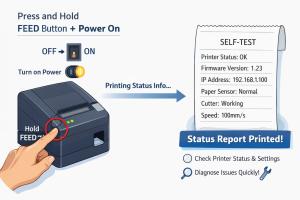
  1. Printing Setup Guide: Checking POS Printer Status for MenuOnePOS

    To enable printing from various MenuOnePOS applications, the POS printer information must be correctly configured. By knowing the printer’s details, you can set up printing for different functions such as order management, receipt printing, ...
    CategoryPrinter-EN Views46
    Read More
  2. No Image

    How to Check the Wi‑Fi Network Name (SSID) on an Android Tablet

    📡 How to Check the Wi‑Fi Network Name (SSID) on an Android Mobile and Tablet Checking the Wi‑Fi network name on an Android tablet is simple, though menu labels may vary slightly depending on the device manufacturer or Android version. Follo...
    CategoryPrinter-EN Views60
    Read More
  3. No Image

    How to Connect Your Existing Ethernet POS Printer to Our App

    How to Connect Your Existing Ethernet POS Printer to Our App If you already have an Ethernet POS printer installed in your restaurant, you can easily connect it to our app by following the steps below. Even if you don’t know your router’s lo...
    CategoryPrinter-EN Views85
    Read More
  4. No Image

    Network (IP) Thermal Printer Setup for Owner App

    In the MenuOnePos.com Owner App, IP printer setup works without a computer. As long as the Ethernet printer and the tablet or mobile phone are connected to the same network, the printer can be used immediately. To set up the Ethernet POS Pri...
    CategoryPrinter-EN Views69
    Read More
  5. No Image

    Bluetooth Printer Setup Guide for Owner App

    Are you already using a POS Bluetooth printer? If you already have a Bluetooth printer in use, you can connect it to our system without purchasing a new one. This allows you to continue using your existing printer, making it a more economica...
    CategoryPrinter-EN Views77
    Read More
Board Pagination Prev 1 Next
/ 1
SCROLL TOP