
To enable printing from various MenuOnePOS applications, the POS printer information must be correctly configured. By knowing the printer’s details, you can set up printing for different functions such as order management, receipt printing, and kitchen output.
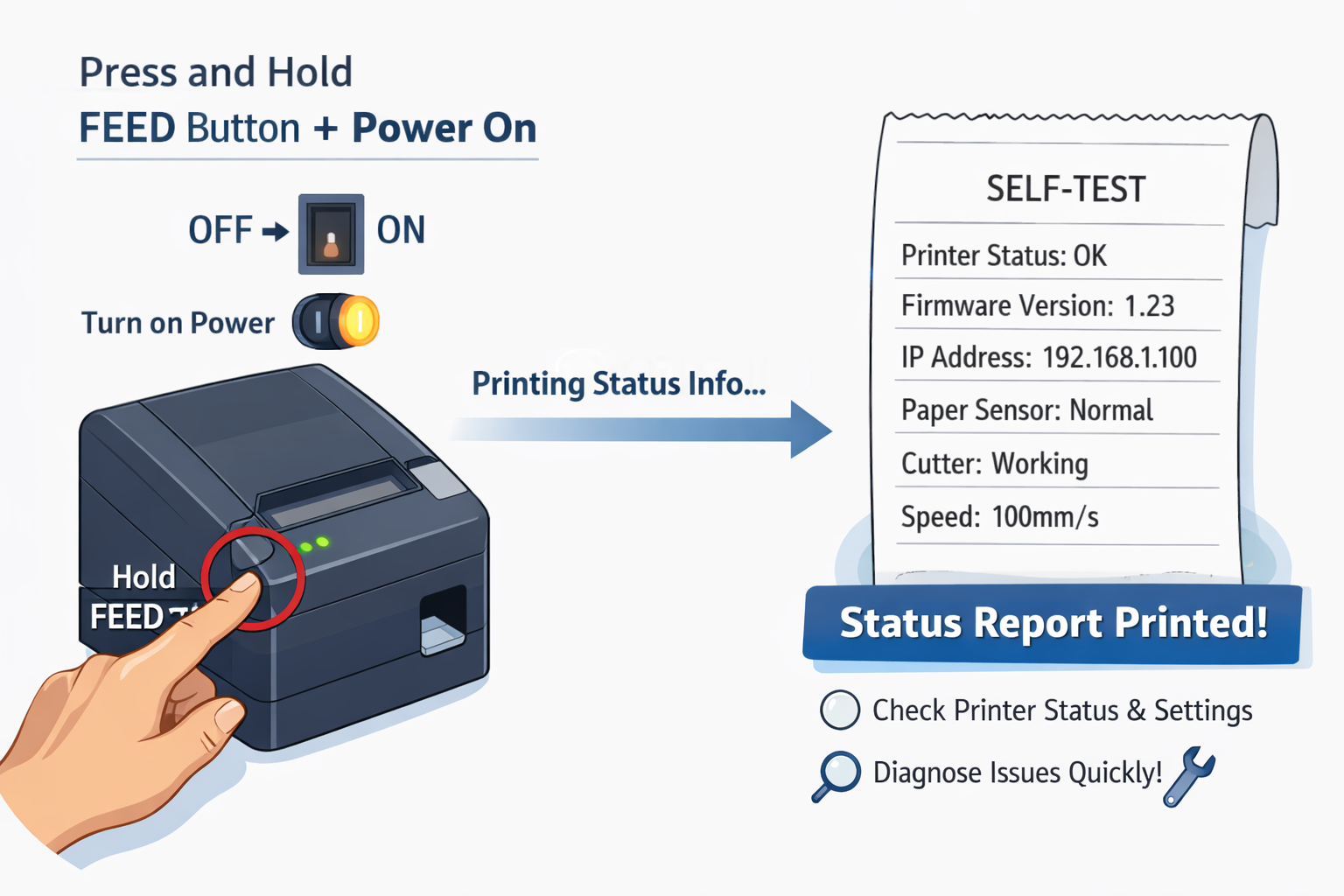
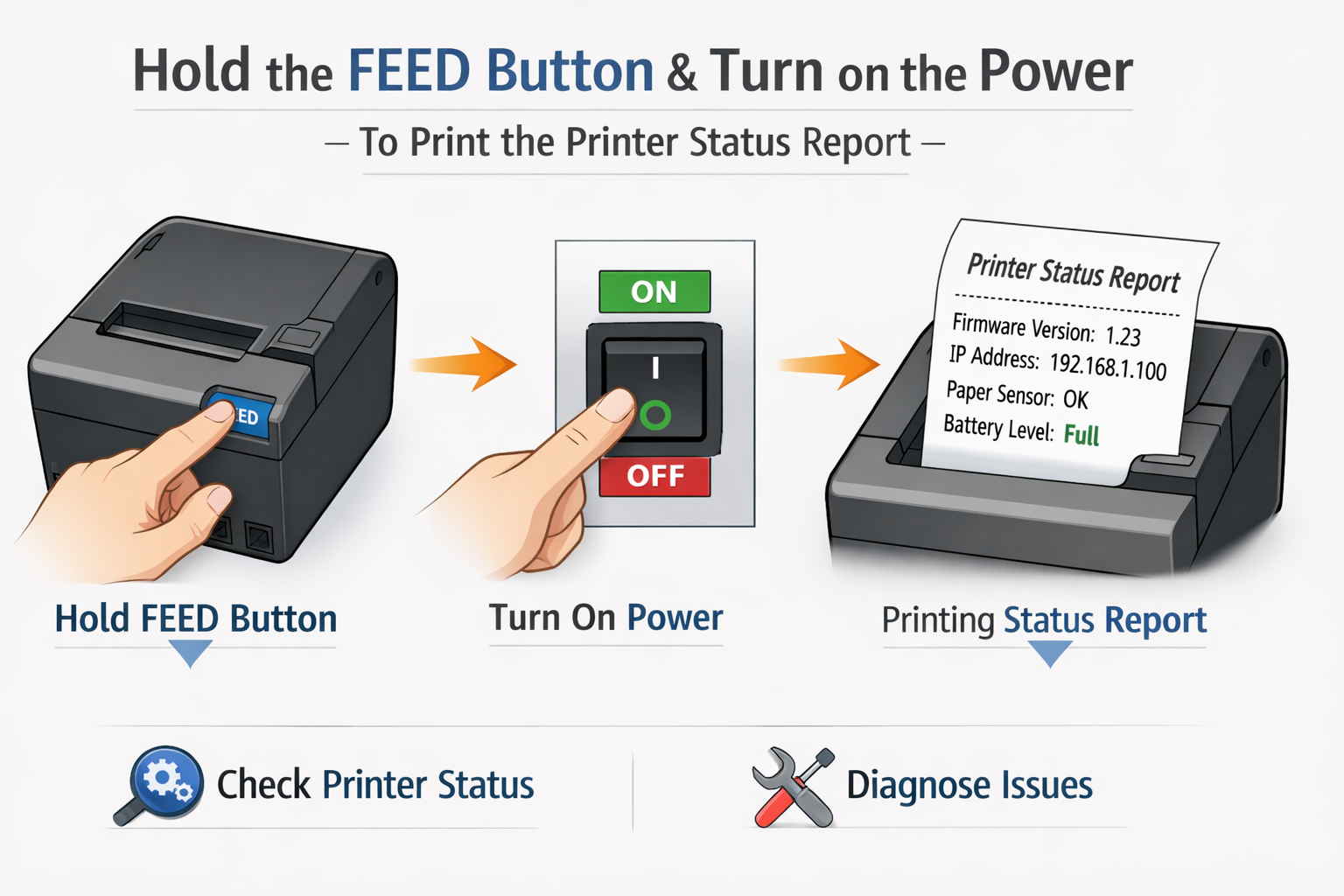
When you press and hold the FEED button while turning on the printer, it prints the status and configuration information (e.g., IP address, firmware version, connection status). This printed report helps you verify the printer’s current condition and use the information to complete the printing setup in MenuOnePOS.
💡 Key Points
-
Press FEED button + Power On → Print printer status information
-
Use printed details to configure the printer connection in MenuOnePOS
-
Once configured, all printing features (orders, receipts, kitchen tickets) will work properly