Skip to menu

MenuOnePOS Owner Hub

Help Center

This page is available in two languages: English (EN) and Korean (KR). English categories begin with “EN,” and Korean categories begin with “KR.”

이 페이지는 영어(EN)와 한국어(KR) 두 가지 언어로 제공됩니다. 영어 카테고리는 EN으로, 한국어 카테고리는 KR로 시작합니다.


Views 2 Votes 0 Comment 0
?

Shortcut

PrevPrev Article

NextNext Article

Larger Font Smaller Font Up Down Go comment Print Attachment
?

Shortcut

PrevPrev Article

NextNext Article

Larger Font Smaller Font Up Down Go comment Print Attachment

1. Overview

Bridge Service

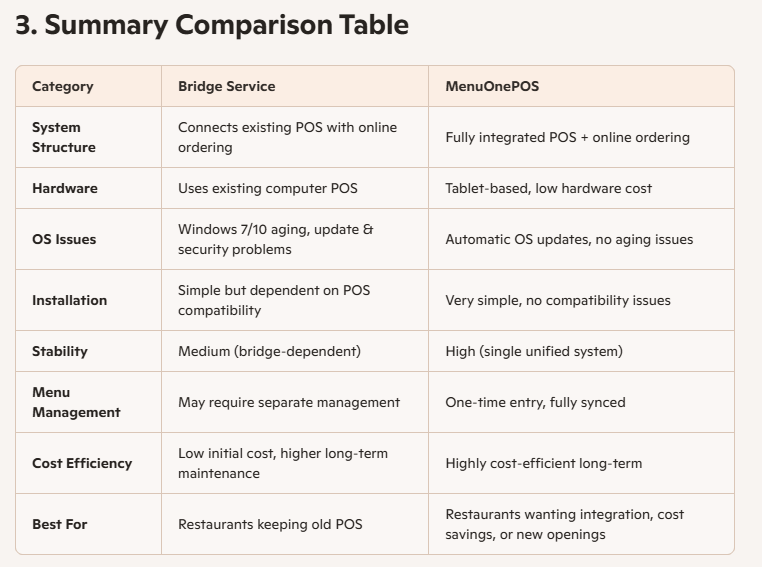
The Bridge Service connects your existing computer‑based POS with an online ordering system. It is ideal for restaurants that want to keep their current POS while simply adding online ordering capabilities.

MenuOnePOS

MenuOnePOS is a tablet‑based POS where the POS system and online ordering platform are fully integrated into one unified solution. Orders, menus, inventory, and reports are all managed within a single system.

2. Key Differences

A. System Structure

Service — Connecting Two Separate Systems

  • Keeps the existing computer POS

  • Online ordering runs on a separate system

  • A bridge transfers data between the two systems

MenuOnePOS — Fully Integrated System

  • Tablet POS includes built‑in online ordering

  • Menu, pricing, options, and order flow are fully unified

B. Installation & OperationaBridge l Convenience

Bridge Service

  • Allows you to keep your current POS

  • Installation is relatively simple

  • However, POS updates, Windows version issues, and aging hardware can cause compatibility problems with the bridge

MenuOnePOS

  • Very easy installation due to tablet‑based hardware

  • No Windows updates or hardware aging issues

  • All functions run within one system, reducing maintenance workload

C. Cost Structure

Bridge Service

  • Existing POS remains in use

  • Requires online ordering system fees + bridge integration fees

  • Initial cost is low, but long‑term costs accumulate due to old POS maintenance, repairs, and updates

MenuOnePOS

  • Tablet‑based, significantly reducing hardware costs compared to computer POS

  • No PC tower, monitor, or Windows OS update expenses

  • Highly cost‑efficient in the long run

D. Hardware Aging & OS Issues

Bridge Service (Using Existing POS)

  • Many restaurants still use outdated OS versions like Windows 7 or Windows 10

  • End‑of‑support OS leads to security vulnerabilities

  • Aging hardware causes slow performance and higher failure risk

  • Compatibility issues may occur when connecting through a bridge

MenuOnePOS (Tablet‑Based)

  • OS updates are automatically supported

  • Lightweight hardware with low replacement cost

  • Eliminates all problems caused by old computer POS systems

  • Maintains stable performance and speed over time

E. Menu & Price Management

Bridge Service

  • POS menus and online menus may need to be managed separately

  • Even with auto‑sync, limitations may occur depending on the POS structure

MenuOnePOS

  • Enter menu, price, and options once, and they sync instantly to both POS and online ordering

  • Simplest management with fewer errors

F. Suitable Restaurant Types

Bridge Service is suitable for:

  • Restaurants that want to keep their existing POS

  • Franchise stores where POS replacement is difficult

  • Restaurants that want to quickly add online ordering

MenuOnePOS is suitable for:

  • Restaurants wanting to manage POS and online ordering in one unified system

  • Restaurants with high delivery or pickup order volume

  • Restaurants wanting to replace old computer POS hardware or reduce costs

  • Restaurants with frequent menu changes and a need for efficient management

  • New restaurants (grand openings)

    • Tablet‑based POS significantly reduces initial hardware costs

    • No PC tower, monitor, or Windows update expenses

    • Built‑in online ordering enables immediate launch of delivery/pickup services

    • Menu, price, and options only need to be entered once for both POS and online ordering

image.png


Owner Guide Center

MenuOnePOS Owner Hub

  1. Bridge Service vs. MenuOnePOS — Comparison Guide

    1. Overview Bridge Service The Bridge Service connects your existing computer‑based POS with an online ordering system. It is ideal for restaurants that want to keep their current POS while simply adding online ordering capabilities. MenuOne...
    CategoryFAQ-EN Views2
    Read More
  2. Bridge Service vs. MenuOnePOS 비교 안내
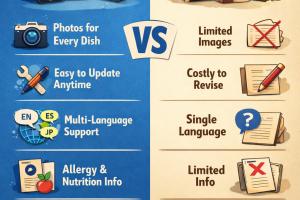
    1. 개요 Bridge Service 기존에 사용 중인 컴퓨터 POS와 온라인 주문 시스템을 연결(브릿지) 해주는 방식입니다. POS는 그대로 유지하면서 온라인 주문만 추가하고 싶은 매장에 적합합니다. MenuOnePOS POS와 온라인 주문 시스템이 하나의 플랫폼으로 통합된 ...
    CategoryFAQ-KR Views1
    Read More
  3. Smarter Restaurant Operations with Online Menus

    🌐 Smarter Restaurant Operations with Online Menus An online menu is more than a digital replacement for paper menus. It is a powerful tool that enhances operational efficiency and elevates the customer experience — the new standard for mode...
    CategoryFAQ-EN Views1
    Read More
  4. 온라인 메뉴로 완성하는 더 스마트한 매장 운영

    🌐 온라인 메뉴로 완성하는 더 스마트한 매장 운영 온라인 메뉴는 단순히 종이 메뉴를 대체하는 도구가 아닙니다. 매장의 운영 효율을 극대화하고, 고객 경험을 한 단계 끌어올리는 새로운 표준입니다. 온라인 메뉴를 사용하면 모든 메뉴에 고화질 음식 사진을...
    CategoryFAQ-KR Views1
    Read More
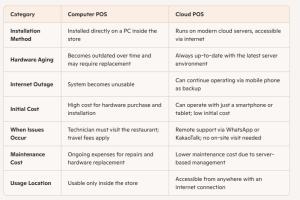
  5. 📊 Computer POS vs Cloud POS Comparison Table

    A POS system without hardware headaches. Cloud POS lets you manage orders anytime, anywhere — even from your smartphone. Fast remote support keeps your business running smoothly. You can click the WhatsApp button at the bottom right, or send...
    CategoryFAQ-EN Views38
    Read More
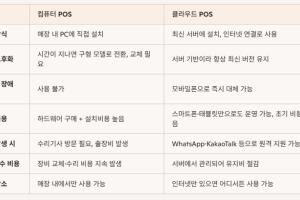
  6. 📊 컴퓨터 POS vs 클라우드 POS 는 어떻게 다른가?

    초기 비용 DOWN, 운영 효율 UP! 컴퓨터 POS처럼 비싼 장비와 출장비를 부담할 필요가 없습니다. 클라우드 POS는 스마트폰·태블릿만으로도 주문 관리가 가능하며, 문제 발생 시 원격으로 즉시 해결해 드립니다. 오른쪽 하단에 있는 WhatsApp 버튼을 클릭하시거...
    CategoryFAQ-KR Views7
    Read More
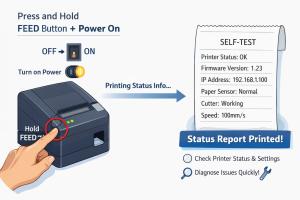
  7. Printing Setup Guide: Checking POS Printer Status for MenuOnePOS

    To enable printing from various MenuOnePOS applications, the POS printer information must be correctly configured. By knowing the printer’s details, you can set up printing for different functions such as order management, receipt printing, ...
    CategoryPrinter-EN Views46
    Read More
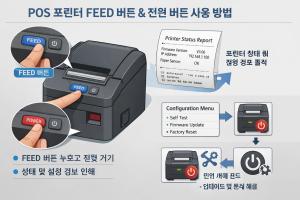
  8. MenuOnePOS 인쇄 설정을 위한 POS 프린터 정보 확인 방법

    프린터 정보를 확인해야 각종 앱(예: 주문 관리, 영수증 출력, 주방 프린트 등)에서 정상적으로 인쇄가 가능합니다. POS 프린터의 FEED 버튼을 누른 상태에서 전원을 켜면, 프린터의 상태 및 설정 정보(예: IP 주소, 펌웨어 버전, 연결 상태)가 자동으로 인쇄...
    CategoryPrinter-KR Views43
    Read More
  9. 오너앱 주문 확인 방법 — 비디오 데모

    이 영상은 오너앱에서 주문을 확인하는 과정을 보여줍니다. 왼쪽 화면은 안드로이드 패드 또는 모바일폰의 오너앱 화면이며, 오른쪽 화면은 고객이 주문을 진행하는 과정을 실시간으로 보여줍니다. 고객이 주문을 완료하면 포스 프린터에서 주문 내용이 자동으...
    CategoryApps-KR Views88
    Read More
  10. Check Orders in the Owner App — Video Demo

    This video demonstrates how to check incoming orders using the Owner App. The left side of the screen shows the Android tablet or mobile phone running the Owner App. The right side displays the customer ordering process in real time. When a ...
    CategoryApps-EN Views88
    Read More
  11. How to Update Item Prices (Video Guide)

    Log in as the owner. From the left menu, select Food/Items. Then edit the price You can experience it yourself on our demo site. Just click the WhatsApp button at the bottom right to reach us.
    CategoryPOS-EN Views47
    Read More
  12. No Image

    How to Check the Wi‑Fi Network Name (SSID) on an Android Tablet

    📡 How to Check the Wi‑Fi Network Name (SSID) on an Android Mobile and Tablet Checking the Wi‑Fi network name on an Android tablet is simple, though menu labels may vary slightly depending on the device manufacturer or Android version. Follo...
    CategoryPrinter-EN Views60
    Read More
  13. No Image

    안드로이드 패드에서 Wi‑Fi 네트워크 이름 확인하기

    아래 내용은 사용자가 제공한 긴 설명을 깔끔하게 정리한 한국어 버전입니다. 핵심만 명확하게 정리하면서도 실제 매장에서 사용할 수 있도록 흐름을 유지했어요. 📡 안드로이드 패드에서 Wi‑Fi 네트워크 이름(SSID) 확인하는 방법 안드로이드 패드에서 Wi‑Fi ...
    CategoryPrinter-KR Views59
    Read More
  14. 레스토랑 오너앱 설치방법

    Download Owner App 📌 Owner App 다운로드 안내 위의 버튼을 클릭하면 Owner App을 다운로드할 수 있습니다. 다운로드가 완료되면 owner.apk 파일을 열어 설치를 시작하세요. 설치 과정 중에 기기에서 “알 수 없는 앱”, “이 앱은 유해할 수 있습니다” 와 같은...
    CategoryApps-KR Views72
    Read More
  15. Download Owner App

    Download Owner App 📌 Owner App Download Instructions Click the button above to download the Owner App. After downloading the owner.apk file, open it to begin the installation. During installation, your device may display security warnings s...
    CategoryApps-EN Views73
    Read More
  16. No Image

    기존 Ethernet POS 프린터를 앱에 연결하는 방법

    Printer를 설정하기 위해서는 Owner App을 다운받아 설치해야 합니다. 📘 기존 Ethernet POS 프린터를 앱에 연결하는 방법 이미 매장에서 사용 중인 Ethernet POS 프린터가 있다면, 아래 단계만 따라 하면 쉽게 우리 앱에 연결할 수 있습니다. 라우터 로그인 ...
    CategoryPrinter-KR Views85
    Read More
  17. No Image

    Owner App – 블루투스 프린터 설정 가이드

    Bluetooth Printer를 설정하기 위해서는 Owner App을 다운받아 설치해야 합니다. 📘 POS 블루투스 프린터를 이미 사용 중이신가요? 이미 사용 중인 블루투스 프린터가 있다면 새로운 프린터를 구매하지 않아도 됩니다. 현재 사용 중인 프린터를 그대로 연결하...
    CategoryPrinter-KR Views79
    Read More
  18. No Image

    이더넷 프린터 설치

    📘 Ethernet POS 프린터 설정 안내 (MenuOnePos.com Owner App) MenuOnePos.com의 Owner App에서는 컴퓨터 없이도 IP(네트워크) 프린터를 설정할 수 있습니다. 프린터와 태블릿 또는 모바일 기기가 같은 네트워크(같은 Wi‑Fi, 같은 라우터)에 연결되어 있기만 ...
    CategoryPrinter-KR Views64
    Read More
  19. No Image

    How to Connect Your Existing Ethernet POS Printer to Our App

    How to Connect Your Existing Ethernet POS Printer to Our App If you already have an Ethernet POS printer installed in your restaurant, you can easily connect it to our app by following the steps below. Even if you don’t know your router’s lo...
    CategoryPrinter-EN Views85
    Read More
  20. No Image

    Network (IP) Thermal Printer Setup for Owner App

    In the MenuOnePos.com Owner App, IP printer setup works without a computer. As long as the Ethernet printer and the tablet or mobile phone are connected to the same network, the printer can be used immediately. To set up the Ethernet POS Pri...
    CategoryPrinter-EN Views69
    Read More
Board Pagination Prev 1 2 Next
/ 2
SCROLL TOP