This page is available in two languages: English (EN) and Korean (KR). English categories begin with “EN,” and Korean categories begin with “KR.”
이 페이지는 영어(EN)와 한국어(KR) 두 가지 언어로 제공됩니다. 영어 카테고리는 EN으로, 한국어 카테고리는 KR로 시작합니다.
Views 88 Votes 0 Comment 0
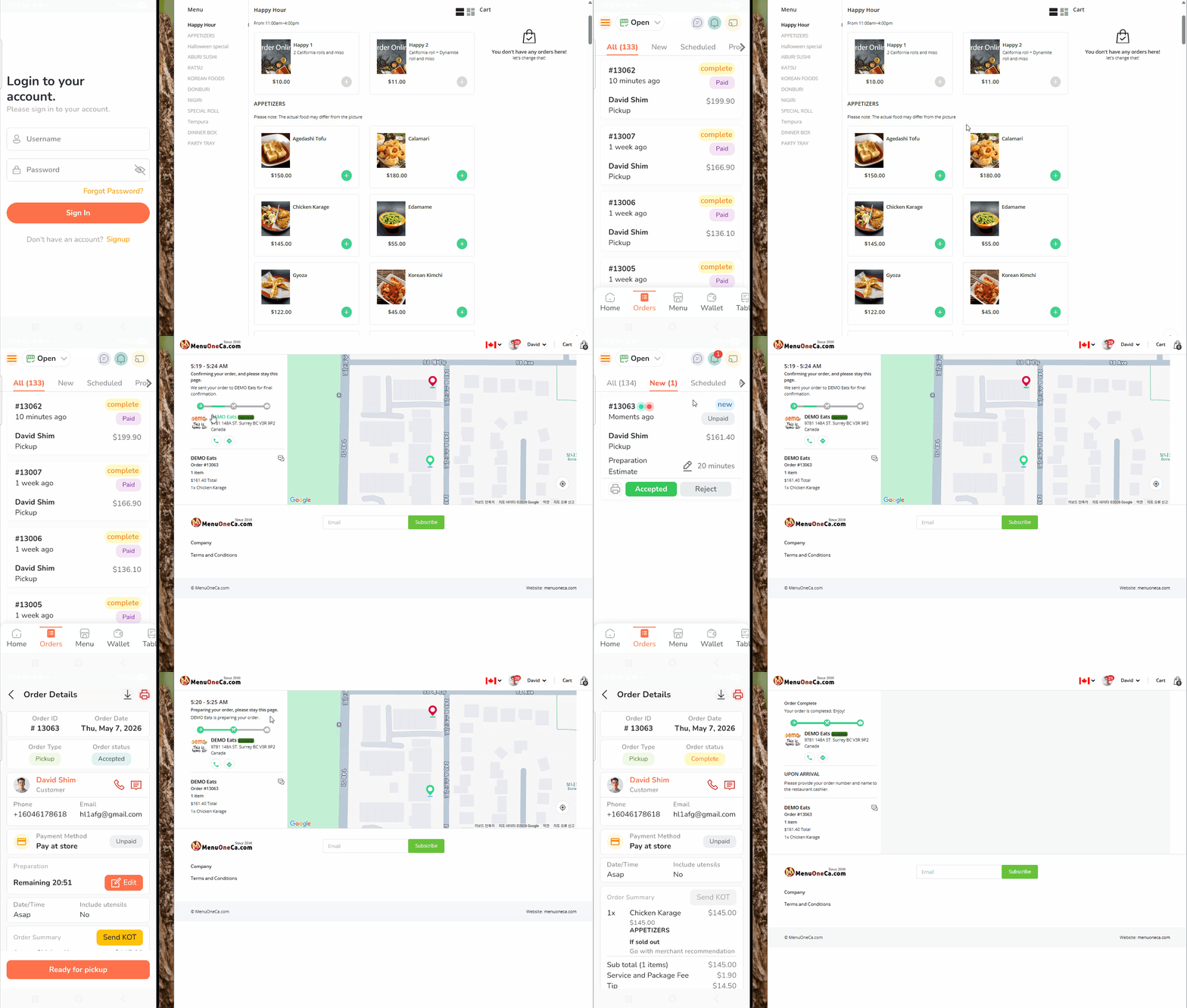
- This video demonstrates how to check incoming orders using the Owner App.
- The left side of the screen shows the Android tablet or mobile phone running the Owner App.
- The right side displays the customer ordering process in real time.
- When a customer places an order, the POS printer automatically prints the order details without any manual action.
TAG •
- OwnerApp,
- OrderCheck,
- POSSystem,
- RestaurantPOS,
- OrderDemo,
- FoodOrder,
- AutoPrint,
- POSPrinter,
- RestaurantManagement,
- OnlineOrdering,
- OrderNotification,
- KitchenPrinter,
- AndroidApp,
- MobileOrdering,
- OrderWorkflow,
- Owner App,
- Order Check,
- POS System,
- Restaurant POS,
- Online Ordering,
- Customer Order Demo,
- Auto Print,
- POS Printer,
- Order Notification,
- Restaurant Management,
- Android Tablet,
- Mobile App,
- Food Ordering System,
- Order Workflow,
- Real-time Order Printing,
-
Bridge Service vs. MenuOnePOS — Comparison Guide
-
Bridge Service vs. MenuOnePOS 비교 안내
-
Smarter Restaurant Operations with Online Menus
-
온라인 메뉴로 완성하는 더 스마트한 매장 운영
-
📊 Computer POS vs Cloud POS Comparison Table
-
📊 컴퓨터 POS vs 클라우드 POS 는 어떻게 다른가?
-
Printing Setup Guide: Checking POS Printer Status for MenuOnePOS
-
MenuOnePOS 인쇄 설정을 위한 POS 프린터 정보 확인 방법
-
오너앱 주문 확인 방법 — 비디오 데모
-
Check Orders in the Owner App — Video Demo
-
How to Update Item Prices (Video Guide)
-
How to Check the Wi‑Fi Network Name (SSID) on an Android Tablet
-
안드로이드 패드에서 Wi‑Fi 네트워크 이름 확인하기
-
레스토랑 오너앱 설치방법
-
Download Owner App
-
기존 Ethernet POS 프린터를 앱에 연결하는 방법
-
Owner App – 블루투스 프린터 설정 가이드
-
이더넷 프린터 설치
-
How to Connect Your Existing Ethernet POS Printer to Our App
-
Network (IP) Thermal Printer Setup for Owner App


 오너앱 주문 확인 방법 — 비디오 데모
 How to Update Item Prices (Video Guide)



